Giriş
Follow this guide to replace a broken screen on a MacBook Neo. The screen also includes the integrated cables for the display and camera.
For your safety, discharge the battery below 25% before disassembly. This reduces the risk of a dangerous fire if the battery is accidentally damaged during the repair. If your battery is swollen, take appropriate precautions.
Neye ihtiyacın var
-
-
-
Fully shut down the MacBook and close the lid. Keep the lid closed until you've physically disconnected the battery.
-
Disconnect any cables and accessories.
-
Flip the computer upside‑down on a clean work surface.
 FixBot'a Sor
-
-
-
-
-
Use a P5 pentalobe driver to remove the eight screws securing the bottom cover:
-
Six 4.1 mm‑long screws
-
Two 4.5 mm‑long screws
-
-
-
Use your fingers to lift the top right corner of the bottom cover, near the USB‑C ports, until the clip along the right edge releases.
-
Repeat this process on the left side to release its clip.
-
-
-
-
-
Use a Torx Plus 3IP driver to remove the two 1.7 mm‑long screws securing the battery connector cover.
-
-
-
Use the flat end of a spudger to pry up and disconnect the battery press connector.
-
-
-
-
-
Use a Torx Plus 3IP driver to remove the 1.7 mm‑long screw securing the antenna connector cover.
-
-
-
-
Insert one arm of angled tweezers under the metal neck of one of the antenna coaxial connectors and lift straight up to disconnect it.
-
Repeat the process to disconnect the second antenna cable.
-
-
-
Use a Torx Plus 5IP driver to remove the four 2.9 mm‑long screws securing the antenna.
-
-
-
-
-
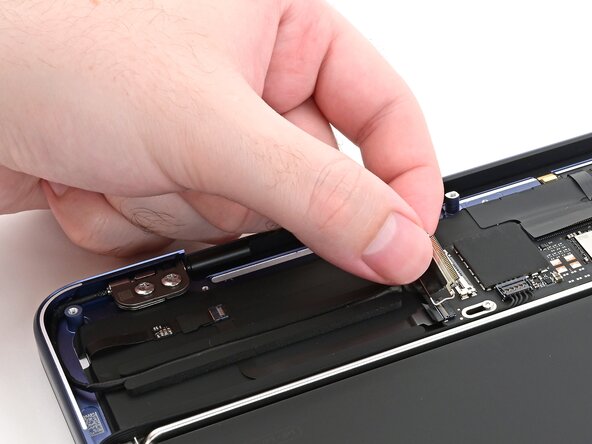
Use the flat end of a spudger to gently push under the metal buckle of the display cable connector, located on the top‑right corner of the logic board, to unclip it.
-
-
-
Grab the buckle and cable together and gently pull the connector straight out of its socket.
-
-
-
Repeat this procedure to disconnect the camera cable, located on the left edge of the logic board.
-
Grip the buckle and insert the connector fully into its socket. Realign it as necessary and don't try to force it in.
-
Flip the buckle over the socket and press it down until it clicks into place.
-
-
-
Pick up the buckle and cable together and gently pull the camera cable out of its channel securing it to the frame.
-
Free the cable so it's not wrapped around the corner of the laptop frame.
-
-
-
Hold the display cable's buckle and cable together and free it from the laptop frame.
-
-
-
Use a Torx Plus 8IP driver to loosen (not remove) all four hinge screws.
-
-
Bu adımda kullanılan alet:IC-LOC-Blue Nonpermanent Threadlocker$6.99
-
Loosen the hinge screws at least one full turn.
-
Adjust the screen until it's correctly centered and aligned on each side. The screen should sit flush with the rest of the laptop.
-
Fully tighten the four hinge screws.
-
-
-
Open the laptop all the way and gently place it keyboard side down on a table, so the screen hangs over the edge.
-
-
-
Support the screen with one hand.
-
With your free hand, use a Torx Plus 8IP driver to remove the four 6.2 mm–long screws securing the hinges.
-
-
-
Hold the screen with both hands and lift the hinges out of their recesses to remove it.
-
-




Compare the new replacement part to the original part—you may need to remove plastic liners from the new part before you install it.
To reassemble the MacBook, follow these instructions in reverse order.
Take your e-waste to an R2 or e-Stewards certified recycler.
Repair didn’t go as planned? Try some basic troubleshooting, or ask our Answers community for help.

