Ana içeriğe geç
Onarım Topluluğuna Katılın - Hesap Oluşturun

iPhone 7 Power and Volume Control Cable Replacement

Neye ihtiyacın var

  1. iPhone 7 Power and Volume Control Cable Replacement, Pentalobe Screws: adım 1, 1 resimden 1.
    • Before you begin, discharge your iPhone battery below 25%. A charged lithium-ion battery can catch fire and/or explode if accidentally punctured.

    • Power off your iPhone before beginning disassembly.

    • Remove the two 3.4 mm pentalobe screws on the bottom edge of the iPhone.

    • Opening the iPhone's display will compromise its waterproof seals. Have replacement seals ready before you proceed past this step, or take care to avoid liquid exposure if you reassemble your iPhone without replacing the seals.

    FixBot'a Sor

    Yorum Ekle

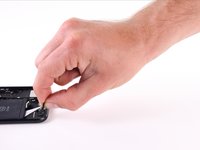
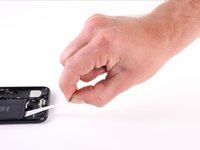
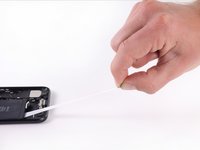
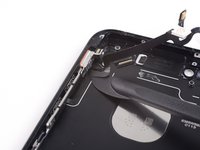
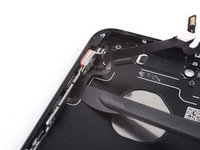
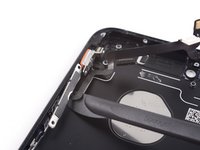
  2. iPhone 7 Power and Volume Control Cable Replacement, Mark your opening picks: adım 2, 3 resimden 1. iPhone 7 Power and Volume Control Cable Replacement, Mark your opening picks: adım 2, 3 resimden 2. iPhone 7 Power and Volume Control Cable Replacement, Mark your opening picks: adım 2, 3 resimden 3.
    • If inserted too far, an opening pick can damage your device. Follow this step to mark your pick and prevent damage.

    • Measure 3 mm from the tip and mark the opening pick with a permanent marker.

    • You can also mark the other corners of the pick with different measurements.

    • Alternatively, tape a coin to a pick 3 mm from the tip.

    FixBot'a Sor

    Yorum Ekle

  3. iPhone 7 Power and Volume Control Cable Replacement, Anti-Clamp instructions: adım 3, 3 resimden 1. iPhone 7 Power and Volume Control Cable Replacement, Anti-Clamp instructions: adım 3, 3 resimden 2. iPhone 7 Power and Volume Control Cable Replacement, Anti-Clamp instructions: adım 3, 3 resimden 3.
    Bu adımda kullanılan alet:
    Clampy - Anti-Clamp
    $24.95
    • The next three steps demonstrate the Anti-Clamp, a tool we designed to make the opening procedure easier. If you aren't using the Anti-Clamp, skip down three steps for an alternate method.

    • For complete instructions on how to use the Anti-Clamp, check out this guide.

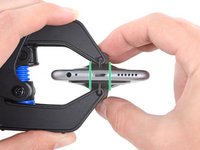
    • Pull the blue handle backwards to unlock the Anti-Clamp's arms.

    • Slide the arms over either the left or right edge of your iPhone.

    • Position the suction cups near the bottom edge of the iPhone just above the home button—one on the front, and one on the back.

    • Squeeze the cups together to apply suction to the desired area.

    • If you find that the surface of your iPhone is too slippery for the Anti-Clamp to hold onto, you can use tape to create a grippier surface.

    FixBot'a Sor

    Yorum Ekle

  4. iPhone 7 Power and Volume Control Cable Replacement: adım 4, 3 resimden 1. iPhone 7 Power and Volume Control Cable Replacement: adım 4, 3 resimden 2. iPhone 7 Power and Volume Control Cable Replacement: adım 4, 3 resimden 3.
    • Pull the blue handle forwards to lock the arms.

    • Turn the handle clockwise 360 degrees or until the cups start to stretch.

    • Make sure the suction cups remain aligned with each other. If they begin to slip out of alignment, loosen the suction cups slightly and realign the arms.

    FixBot'a Sor

    Yorum Ekle

  5. iPhone 7 Power and Volume Control Cable Replacement: adım 5, 2 resimden 1. iPhone 7 Power and Volume Control Cable Replacement: adım 5, 2 resimden 2.
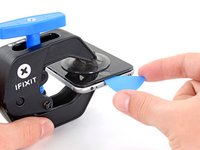
    • Heat an iOpener and thread it through the arms of the Anti-Clamp.

    • You can also use a hair dryer, heat gun, or hot plate—but extreme heat can damage the display and/or internal battery, so proceed with care.

    • Fold the iOpener so it lays on the bottom edge of the iPhone.

    • Wait one minute to give the adhesive a chance to release and present an opening gap.

    • Insert an opening pick into the gap.

    • If the Anti-Clamp doesn't create a sufficient gap, apply more heat to the area and rotate the handle a quarter turn.

    • Don't crank more than a quarter turn at a time, and wait one minute between turns. Let the Anti-Clamp and time do the work for you.

    • Skip the next three steps.

    FixBot'a Sor

    Yorum Ekle

  6. iPhone 7 Power and Volume Control Cable Replacement, Heat the display: adım 6, 1 resimden 1.
    • The next three steps show how to separate the screen using a suction cup.

    • Heating the lower edge of the iPhone will help soften the adhesive securing the display, making it easier to open.

    • Use a hairdryer or prepare an iOpener and apply it to the lower edge of the phone for about 90 seconds in order to soften up the adhesive underneath.

    FixBot'a Sor

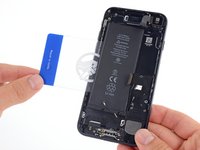
    Yorum Ekle

  7. iPhone 7 Power and Volume Control Cable Replacement, Separate the display: adım 7, 2 resimden 1. iPhone 7 Power and Volume Control Cable Replacement, Separate the display: adım 7, 2 resimden 2.
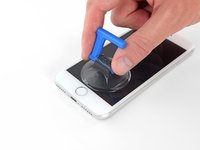
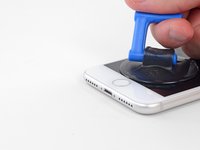
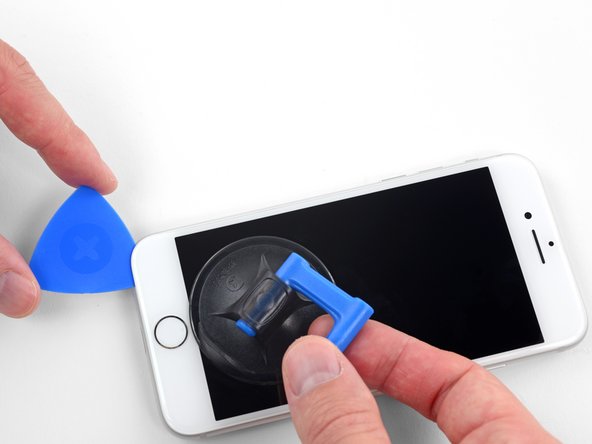
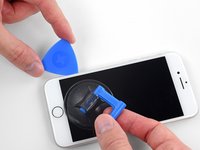
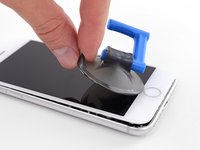
    • Apply a suction cup to the lower half of the front panel, just above the home button.

    • Be sure the suction cup does not overlap with the home button, as this will prevent a seal from forming between the suction cup and front glass.

    FixBot'a Sor

    Yorum Ekle

  8. iPhone 7 Power and Volume Control Cable Replacement: adım 8, 3 resimden 1. iPhone 7 Power and Volume Control Cable Replacement: adım 8, 3 resimden 2. iPhone 7 Power and Volume Control Cable Replacement: adım 8, 3 resimden 3.
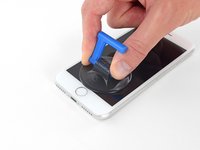
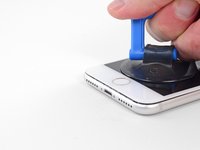
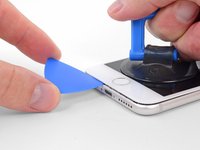
    • Pull up on the suction cup with firm, constant pressure to create a slight gap between the screen and the frame.

    • Insert an opening pick into the gap.

    • The watertight adhesive holding the screen in place is very strong; creating this initial gap takes a significant amount of force. If you're having a hard time opening a gap, apply more heat, and gently rock the screen up and down to weaken the adhesive until you create enough of a gap to insert your tool.

    FixBot'a Sor

    Yorum Ekle

  9. iPhone 7 Power and Volume Control Cable Replacement: adım 9, 3 resimden 1. iPhone 7 Power and Volume Control Cable Replacement: adım 9, 3 resimden 2. iPhone 7 Power and Volume Control Cable Replacement: adım 9, 3 resimden 3.
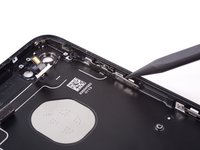
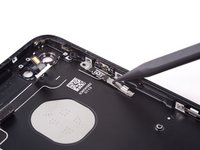
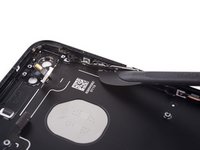
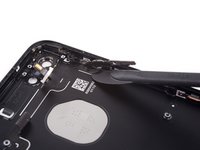
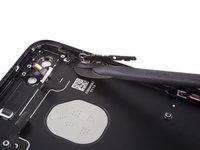
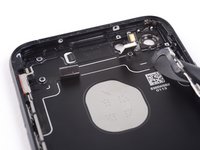
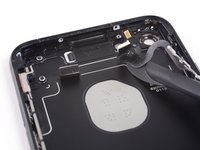
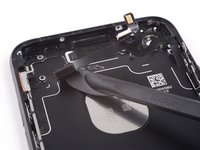
    • Slide the opening pick up the left edge of the phone starting at the lower edge and moving towards the volume control buttons and silent switch, breaking up the adhesive holding the display in place.

    • Stop near the top left corner of the display.

    • Do not try to pry the top edge of the display away from the rear case, as it is held in place by plastic clips that may break.

    FixBot'a Sor

    Yorum Ekle

  10. iPhone 7 Power and Volume Control Cable Replacement, Screen information: adım 10, 1 resimden 1.
    • There are delicate cables along the right edge of your iPhone. Don't insert your pick here, as you may damage the cables.

    FixBot'a Sor

    Yorum Ekle

  11. iPhone 7 Power and Volume Control Cable Replacement: adım 11, 3 resimden 1. iPhone 7 Power and Volume Control Cable Replacement: adım 11, 3 resimden 2. iPhone 7 Power and Volume Control Cable Replacement: adım 11, 3 resimden 3.
    • Re-insert your tool at the lower right corner of the iPhone, and slide it around the corner and up the right side of the phone to separate the adhesive.

    • Don't insert your pick more than 3 mm, as you may damage the display cables.

    FixBot'a Sor

    Yorum Ekle

  12. iPhone 7 Power and Volume Control Cable Replacement: adım 12, 2 resimden 1. iPhone 7 Power and Volume Control Cable Replacement: adım 12, 2 resimden 2.
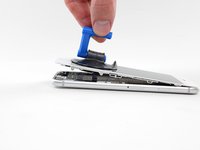
    • Gently pull up on the suction cup to lift up the bottom edge of the display.

    • Do not raise the display more than 15º or you'll risk straining or tearing the ribbon cables connecting the display.

    • Pull on the small nub on the suction cup to remove it from the front panel.

    FixBot'a Sor

    Yorum Ekle

  13. iPhone 7 Power and Volume Control Cable Replacement: adım 13, 3 resimden 1. iPhone 7 Power and Volume Control Cable Replacement: adım 13, 3 resimden 2. iPhone 7 Power and Volume Control Cable Replacement: adım 13, 3 resimden 3.
    • Slide an opening pick underneath the display around the top left corner and along the top edge of the phone to loosen the last of the adhesive.

    FixBot'a Sor

    Yorum Ekle

  14. iPhone 7 Power and Volume Control Cable Replacement: adım 14, 2 resimden 1. iPhone 7 Power and Volume Control Cable Replacement: adım 14, 2 resimden 2.
    • Slide the display assembly slightly down (away from the top edge of the phone) to disengage the clips holding it to the rear case.

    FixBot'a Sor

    Yorum Ekle

  15. iPhone 7 Power and Volume Control Cable Replacement: adım 15, 3 resimden 1. iPhone 7 Power and Volume Control Cable Replacement: adım 15, 3 resimden 2. iPhone 7 Power and Volume Control Cable Replacement: adım 15, 3 resimden 3.
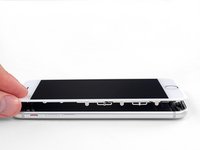
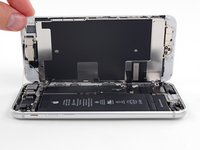
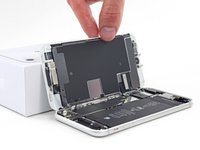
    • Open the iPhone by swinging the display up from the left side, like the back cover of a book.

    • Don't try to fully separate the display yet, as several fragile ribbon cables still connect it to the iPhone's logic board.

    • Lean the display against something to keep it propped up while you're working on the phone.

    FixBot'a Sor

    Yorum Ekle

  16. iPhone 7 Power and Volume Control Cable Replacement, Battery Disconnection: adım 16, 1 resimden 1.
    Bu adımda kullanılan alet:
    Tri-point Y000 Screwdriver
    $5.99
    FixBot'a Sor

    Yorum Ekle

  17. iPhone 7 Power and Volume Control Cable Replacement: adım 17, 1 resimden 1.
    • Remove the lower connector bracket.

    FixBot'a Sor

    Yorum Ekle

  18. iPhone 7 Power and Volume Control Cable Replacement: adım 18, 3 resimden 1. iPhone 7 Power and Volume Control Cable Replacement: adım 18, 3 resimden 2. iPhone 7 Power and Volume Control Cable Replacement: adım 18, 3 resimden 3.
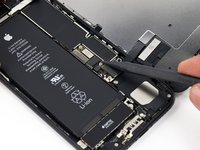
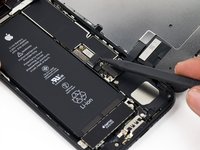
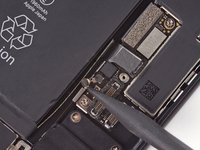
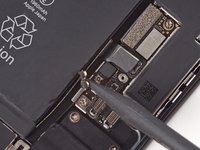
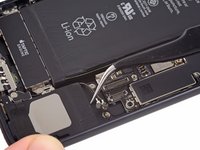
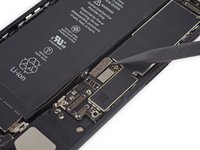
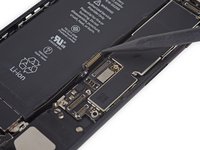
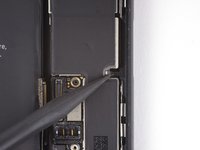
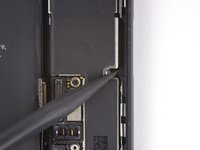
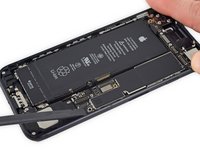
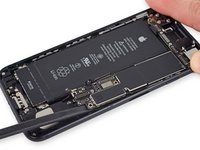
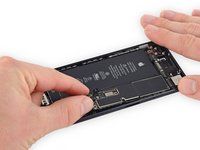
    • Use the point of a spudger to lift the battery connector out of its socket on the logic board.

    • Bend the connector cable up slightly to prevent it from making contact with the socket and providing power to the phone.

    FixBot'a Sor

    Yorum Ekle

  19. iPhone 7 Power and Volume Control Cable Replacement, Display Assembly: adım 19, 3 resimden 1. iPhone 7 Power and Volume Control Cable Replacement, Display Assembly: adım 19, 3 resimden 2. iPhone 7 Power and Volume Control Cable Replacement, Display Assembly: adım 19, 3 resimden 3.
    • Make sure the battery is disconnected before you disconnect or reconnect the cables in this step.

    • Use a spudger or a fingernail to disconnect the two lower display connectors by prying them straight up from their sockets on the logic board.

    • To reconnect these cables, press down on one end until it clicks into place, then repeat on the opposite end. Do not press down on the middle. If the connector is even slightly misaligned, the connector can bend, causing permanent damage.

    • If you have a blank screen, white lines on the display, or partial or complete lack of touch response after reassembling your phone, try disconnecting and carefully reconnecting both of these cables and make sure they are fully seated.

    FixBot'a Sor

    Yorum Ekle

  20. iPhone 7 Power and Volume Control Cable Replacement: adım 20, 3 resimden 1. iPhone 7 Power and Volume Control Cable Replacement: adım 20, 3 resimden 2. iPhone 7 Power and Volume Control Cable Replacement: adım 20, 3 resimden 3.
    • Remove the two 1.3 mm Phillips #000 screws securing the bracket over the front panel sensor assembly connector.

    • Some phones could be Y000. Apple started using Y000 for these at some point in the middle of the product's lifecycle.

    FixBot'a Sor

    Yorum Ekle

  21. iPhone 7 Power and Volume Control Cable Replacement: adım 21, 2 resimden 1. iPhone 7 Power and Volume Control Cable Replacement: adım 21, 2 resimden 2.
    • Disconnect the front panel sensor assembly connector from its socket on the logic board.

    • This press connector should also be reconnected one end at a time to minimize the risk of bending.

    FixBot'a Sor

    Yorum Ekle

  22. iPhone 7 Power and Volume Control Cable Replacement: adım 22, 1 resimden 1.
    FixBot'a Sor

    Yorum Ekle

  23. iPhone 7 Power and Volume Control Cable Replacement, SIM Card: adım 23, 3 resimden 1. iPhone 7 Power and Volume Control Cable Replacement, SIM Card: adım 23, 3 resimden 2. iPhone 7 Power and Volume Control Cable Replacement, SIM Card: adım 23, 3 resimden 3.
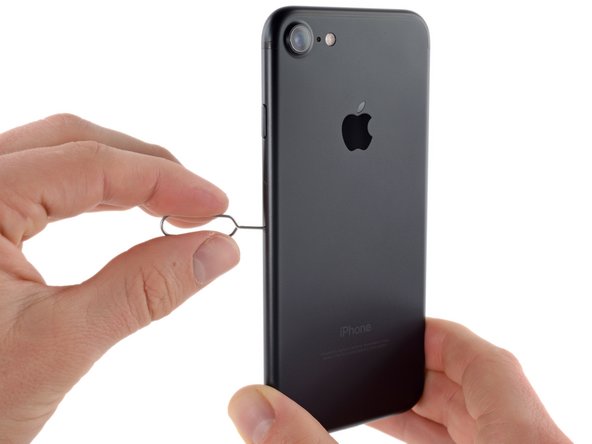
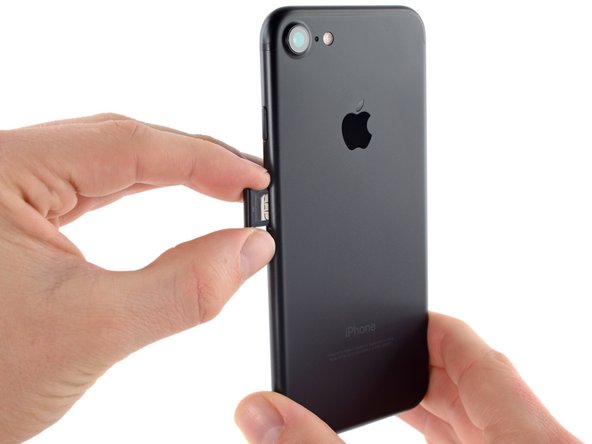
    • Insert a SIM card eject tool or a paperclip into the small hole in the SIM card tray.

    • Press to eject the tray.

    • This may require a significant amount of force. However, ensure the eject tool is properly aligned beforehand as to not damage the eject mechanism inside the phone.

    • Remove the SIM card tray assembly from the iPhone.

    • When reinserting the SIM card, ensure that it is in the proper orientation relative to the tray.

    FixBot'a Sor

    Yorum Ekle

  24. iPhone 7 Power and Volume Control Cable Replacement, Logic Board Connectors: adım 24, 2 resimden 1. iPhone 7 Power and Volume Control Cable Replacement, Logic Board Connectors: adım 24, 2 resimden 2.
    • Use the flat end of a spudger to disconnect the rear-facing camera connector.

    FixBot'a Sor

    Yorum Ekle

  25. iPhone 7 Power and Volume Control Cable Replacement: adım 25, 2 resimden 1. iPhone 7 Power and Volume Control Cable Replacement: adım 25, 2 resimden 2.
    • Remove the following Phillips screws securing the rear camera bracket to the rear case:

    • One 1.3 mm screw

    • One 2.5 mm screw

    FixBot'a Sor

    Yorum Ekle

  26. iPhone 7 Power and Volume Control Cable Replacement: adım 26, 1 resimden 1.
    • Remove the bracket.

    FixBot'a Sor

    Yorum Ekle

  27. iPhone 7 Power and Volume Control Cable Replacement: adım 27, 2 resimden 1. iPhone 7 Power and Volume Control Cable Replacement: adım 27, 2 resimden 2.
    • Use the pointed end of a spudger to pry up and disconnect the antenna bus connector, just left of the rear camera module.

    FixBot'a Sor

    Yorum Ekle

  28. iPhone 7 Power and Volume Control Cable Replacement: adım 28, 1 resimden 1.
    • Remove the two 1.2 mm tri-point screws securing the upper cable bracket.

    FixBot'a Sor

    Yorum Ekle

  29. iPhone 7 Power and Volume Control Cable Replacement: adım 29, 2 resimden 1. iPhone 7 Power and Volume Control Cable Replacement: adım 29, 2 resimden 2.
    • Remove the upper cable bracket.

    FixBot'a Sor

    Yorum Ekle

  30. iPhone 7 Power and Volume Control Cable Replacement: adım 30, 2 resimden 1. iPhone 7 Power and Volume Control Cable Replacement: adım 30, 2 resimden 2.
    • Use the flat end of a spudger to disconnect the upper cable connector.

    FixBot'a Sor

    Yorum Ekle

  31. iPhone 7 Power and Volume Control Cable Replacement: adım 31, 2 resimden 1. iPhone 7 Power and Volume Control Cable Replacement: adım 31, 2 resimden 2.
    • Remove the four Phillips screws securing the Wi-Fi antenna:

    • Three 1.2 mm screws

    • One 1.7 mm screw

    FixBot'a Sor

    Yorum Ekle

  32. iPhone 7 Power and Volume Control Cable Replacement: adım 32, 2 resimden 1. iPhone 7 Power and Volume Control Cable Replacement: adım 32, 2 resimden 2.
    • Remove the top left antenna.

    FixBot'a Sor

    Yorum Ekle

  33. iPhone 7 Power and Volume Control Cable Replacement: adım 33, 1 resimden 1.
    • Remove the following Phillips screws:

    • One 1.3 mm screw

    • One 2.2 mm screw

    FixBot'a Sor

    Yorum Ekle

  34. iPhone 7 Power and Volume Control Cable Replacement: adım 34, 2 resimden 1. iPhone 7 Power and Volume Control Cable Replacement: adım 34, 2 resimden 2.
    • Remove the bracket.

    FixBot'a Sor

    Yorum Ekle

  35. iPhone 7 Power and Volume Control Cable Replacement: adım 35, 1 resimden 1.
    Bu adımda kullanılan alet:
    Standoff Screwdriver for iPhones
    $5.49
    • Remove the 2.2 mm standoff screw from the grounding bracket.

    • Standoff screws are best removed using a standoff screwdriver or bit.

    • In a pinch, a small flathead screwdriver will do the job—but use extra caution to ensure it doesn't slip and damage surrounding components.

    FixBot'a Sor

    Yorum Ekle

  36. iPhone 7 Power and Volume Control Cable Replacement: adım 36, 2 resimden 1. iPhone 7 Power and Volume Control Cable Replacement: adım 36, 2 resimden 2.
    Bu adımda kullanılan alet:
    Tweezers
    $4.99
    • Use tweezers to gently bend the logic board grounding bracket out of the way.

    FixBot'a Sor

    Yorum Ekle

  37. iPhone 7 Power and Volume Control Cable Replacement, Logic Board: adım 37, 3 resimden 1. iPhone 7 Power and Volume Control Cable Replacement, Logic Board: adım 37, 3 resimden 2. iPhone 7 Power and Volume Control Cable Replacement, Logic Board: adım 37, 3 resimden 3.
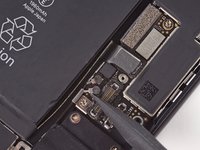
    • Use the point of a spudger to lift the two antenna cable connectors up off of the sockets on the logic board.

    FixBot'a Sor

    Yorum Ekle

  38. iPhone 7 Power and Volume Control Cable Replacement: adım 38, 3 resimden 1. iPhone 7 Power and Volume Control Cable Replacement: adım 38, 3 resimden 2. iPhone 7 Power and Volume Control Cable Replacement: adım 38, 3 resimden 3.
    Bu adımda kullanılan alet:
    Tweezers
    $4.99
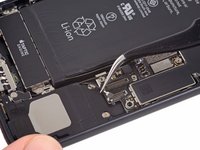
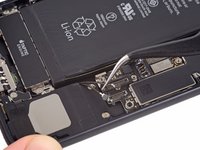
    • Use tweezers to gently derout the antenna cables from the metal bracket on the logic board.

    FixBot'a Sor

    Yorum Ekle

  39. iPhone 7 Power and Volume Control Cable Replacement: adım 39, 2 resimden 1. iPhone 7 Power and Volume Control Cable Replacement: adım 39, 2 resimden 2.
    • Use the point of a spudger to disconnect the lower cable connector.

    FixBot'a Sor

    Yorum Ekle

  40. iPhone 7 Power and Volume Control Cable Replacement: adım 40, 1 resimden 1.
    Bu adımda kullanılan alet:
    Standoff Screwdriver for iPhones
    $5.49
    • Remove the following screws:

    • One 1.4 mm Phillips screw

    • Three 2.2 mm standoff screws

    • Standoff screws are best removed using a standoff driver.

    • In a pinch, a small flathead screwdriver will do the job—but use extra caution to ensure it doesn't slip and damage surrounding components.

    FixBot'a Sor

    Yorum Ekle

  41. iPhone 7 Power and Volume Control Cable Replacement: adım 41, 2 resimden 1. iPhone 7 Power and Volume Control Cable Replacement: adım 41, 2 resimden 2.
    • Use the point of a spudger to move the SIM card eject plunger out of the logic board's way.

    FixBot'a Sor

    Yorum Ekle

  42. iPhone 7 Power and Volume Control Cable Replacement: adım 42, 2 resimden 1. iPhone 7 Power and Volume Control Cable Replacement: adım 42, 2 resimden 2.
    • Use the flat end of a spudger to gently lift the battery connector end of the logic board up.

    • Make sure you're not pulling against any cables. If you feel resistance, check all cables, connectors, and components are clear of the board.

    FixBot'a Sor

    Yorum Ekle

  43. iPhone 7 Power and Volume Control Cable Replacement: adım 43, 3 resimden 1. iPhone 7 Power and Volume Control Cable Replacement: adım 43, 3 resimden 2. iPhone 7 Power and Volume Control Cable Replacement: adım 43, 3 resimden 3.
    • Lift the battery connector end of the logic board and pull it up and out of the rear case.

    • Be careful not to snag the logic board on any cables.

    FixBot'a Sor

    Yorum Ekle

  44. iPhone 7 Power and Volume Control Cable Replacement, Barometric Vent: adım 44, 1 resimden 1.
    • Remove the two 1.9 mm Phillips screws securing the barometric vent to the rear case.

    FixBot'a Sor

    Yorum Ekle

  45. iPhone 7 Power and Volume Control Cable Replacement: adım 45, 2 resimden 1. iPhone 7 Power and Volume Control Cable Replacement: adım 45, 2 resimden 2.
    • Remove the vent.

    FixBot'a Sor

    Yorum Ekle

  46. iPhone 7 Power and Volume Control Cable Replacement, Power and Volume Control Cable Battery: adım 46, 2 resimden 1. iPhone 7 Power and Volume Control Cable Replacement, Power and Volume Control Cable Battery: adım 46, 2 resimden 2.
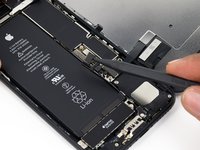
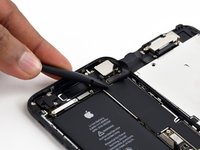
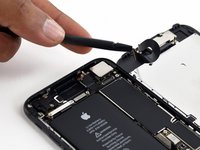
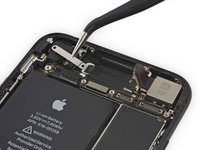
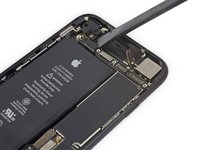
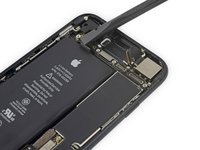
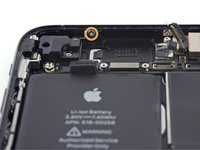
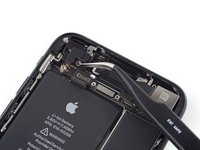
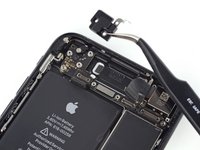
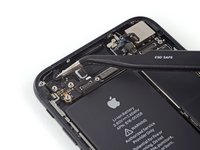
    • Use the flat end of a spudger to disconnect the Taptic Engine connector from its socket on the logic board.

    FixBot'a Sor

    Yorum Ekle

  47. iPhone 7 Power and Volume Control Cable Replacement: adım 47, 1 resimden 1.
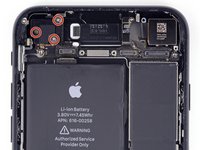
    • Remove the three 1.6 mm Phillips screws securing the Taptic Engine to the rear case.

    FixBot'a Sor

    Yorum Ekle

  48. iPhone 7 Power and Volume Control Cable Replacement: adım 48, 2 resimden 1. iPhone 7 Power and Volume Control Cable Replacement: adım 48, 2 resimden 2.
    • Remove the Taptic Engine.

    FixBot'a Sor

    Yorum Ekle

  49. iPhone 7 Power and Volume Control Cable Replacement: adım 49, 3 resimden 1. iPhone 7 Power and Volume Control Cable Replacement: adım 49, 3 resimden 2. iPhone 7 Power and Volume Control Cable Replacement: adım 49, 3 resimden 3.
    Bu adımda kullanılan alet:
    Tweezers
    $4.99
    FixBot'a Sor

    Yorum Ekle

  50. iPhone 7 Power and Volume Control Cable Replacement: adım 50, 2 resimden 1. iPhone 7 Power and Volume Control Cable Replacement: adım 50, 2 resimden 2.
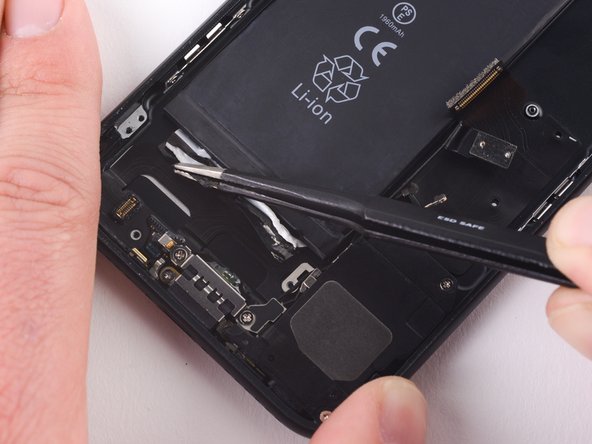
    • Use a pair of tweezers with blunt tips to peel back the other adhesive strip on the lower edge of the battery.

    FixBot'a Sor

    Yorum Ekle

  51. iPhone 7 Power and Volume Control Cable Replacement: adım 51, 3 resimden 1. iPhone 7 Power and Volume Control Cable Replacement: adım 51, 3 resimden 2. iPhone 7 Power and Volume Control Cable Replacement: adım 51, 3 resimden 3.
    • Try to keep the strips flat and unwrinkled during this procedure; wrinkled strips will stick together and break instead of pulling out cleanly.

    • Slowly pull one battery adhesive tab away from the battery, toward the bottom of the iPhone.

    • Pull steadily, maintaining constant tension on the strip until it slips out from between the battery and the rear case. For best results, pull the strip at a 60º angle or less.

    • The strip will stretch to many times its original length. Continue pulling and re-grab the strip near the battery if necessary.

    FixBot'a Sor

    Yorum Ekle

  52. iPhone 7 Power and Volume Control Cable Replacement: adım 52, 1 resimden 1.
    • Repeat the previous step for the second strip.

    • Hold down the battery as you remove the second strip, or the strip may fling the battery when it separates from the case.

    • If you removed both adhesive strips successfully, skip the next step.

    • Otherwise, if either of the adhesive strips broke off underneath the battery and could not be retrieved, continue with the next step below.

    FixBot'a Sor

    Yorum Ekle

  53. iPhone 7 Power and Volume Control Cable Replacement: adım 53, 2 resimden 1. iPhone 7 Power and Volume Control Cable Replacement: adım 53, 2 resimden 2.
    Bu adımda kullanılan alet:
    Plastic Cards
    $2.99
    • If you successfully removed both adhesive strips, move on to the next step. Otherwise, you will need to pry the battery from the rear case.

    • Prepare an iOpener and apply it to the back of the rear case, directly over the battery. Alternatively, you can apply heat using a heat gun or hair dryer.

    • After about a minute, remove the iOpener, flip the phone over and use a plastic card to break up any remaining adhesive behind the battery.

    • Avoid bending the battery. Damage to the battery may release dangerous chemicals, and could start a fire.

    • Do not pry under the top third of the battery, you may damage the volume button ribbon cable.

    FixBot'a Sor

    Yorum Ekle

  54. iPhone 7 Power and Volume Control Cable Replacement: adım 54, 1 resimden 1.
    • Remove the battery.

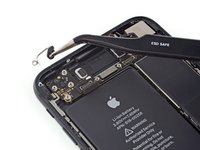
    • When installing the battery, refer to this guide to replace your battery's adhesive strips.

    FixBot'a Sor

    Yorum Ekle

  55. iPhone 7 Power and Volume Control Cable Replacement, Power and Volume Control Cable: adım 55, 2 resimden 1. iPhone 7 Power and Volume Control Cable Replacement, Power and Volume Control Cable: adım 55, 2 resimden 2.
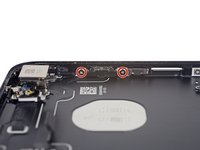
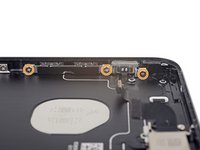
    • Remove the following Phillips screws:

    • Two 1.9 mm screws securing the power button.

    • Three 2.3 mm screws securing the volume buttons.

    FixBot'a Sor

    Yorum Ekle

  56. iPhone 7 Power and Volume Control Cable Replacement: adım 56, 2 resimden 1. iPhone 7 Power and Volume Control Cable Replacement: adım 56, 2 resimden 2.
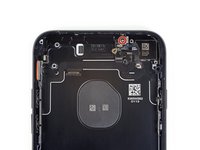
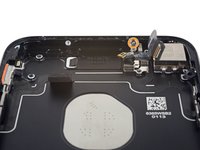
    • Remove the following 1.3 mm Phillips screws:

    • One screw beside the rear-facing camera

    • One screw on the rear case

    FixBot'a Sor

    Yorum Ekle

  57. iPhone 7 Power and Volume Control Cable Replacement: adım 57, 2 resimden 1. iPhone 7 Power and Volume Control Cable Replacement: adım 57, 2 resimden 2.
    • From the outside of the phone, push the hold switch into the rear case with the point of a spudger.

    • This action will free the hold switch and gasket from the rear case.

    FixBot'a Sor

    Yorum Ekle

  58. iPhone 7 Power and Volume Control Cable Replacement: adım 58, 2 resimden 1. iPhone 7 Power and Volume Control Cable Replacement: adım 58, 2 resimden 2.
    Bu adımda kullanılan alet:
    Tweezers
    $4.99
    • Use a pair of tweezers to remove the rear-facing camera.

    FixBot'a Sor

    Yorum Ekle

  59. iPhone 7 Power and Volume Control Cable Replacement: adım 59, 2 resimden 1. iPhone 7 Power and Volume Control Cable Replacement: adım 59, 2 resimden 2.
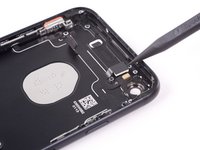
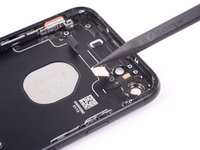
    • Moving from power button side of the phone, use an opening pick to separate the adhesive holding the antenna flex cable to the rear case.

    FixBot'a Sor

    Yorum Ekle

  60. iPhone 7 Power and Volume Control Cable Replacement: adım 60, 2 resimden 1. iPhone 7 Power and Volume Control Cable Replacement: adım 60, 2 resimden 2.
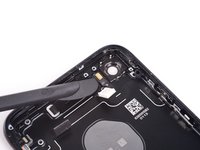
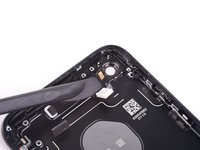
    • Slide the point of an opening pick underneath the antenna flex cable towards the top of the phone, separating the remaining adhesive.

    FixBot'a Sor

    Yorum Ekle

  61. iPhone 7 Power and Volume Control Cable Replacement: adım 61, 2 resimden 1. iPhone 7 Power and Volume Control Cable Replacement: adım 61, 2 resimden 2.
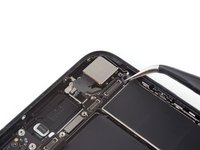
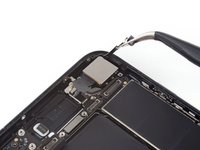
    • Use tweezers to move the antenna flex cable away from the edge of the phone, freeing the screw bracket from the rear case.

    • Remove the antenna flex cable.

    FixBot'a Sor

    Yorum Ekle

  62. iPhone 7 Power and Volume Control Cable Replacement: adım 62, 1 resimden 1.
    • Remove the 2.3 mm standoff screw securing the flash bracket to the rear case.

    • Standoff screws are best removed using an [bağlı ürün eksik veya kapalı: IF145-343] and driver handle.

    • In a pinch, a small flathead screwdriver will do the job—but use extra caution to ensure it doesn't slip and damage surrounding components.

    FixBot'a Sor

    Yorum Ekle

  63. iPhone 7 Power and Volume Control Cable Replacement: adım 63, 2 resimden 1. iPhone 7 Power and Volume Control Cable Replacement: adım 63, 2 resimden 2.
    • Remove the flash bracket.

    FixBot'a Sor

    Yorum Ekle

  64. iPhone 7 Power and Volume Control Cable Replacement: adım 64, 2 resimden 1. iPhone 7 Power and Volume Control Cable Replacement: adım 64, 2 resimden 2.
    • Use the point of a spudger to gently unseat the flash module.

    FixBot'a Sor

    Yorum Ekle

  65. iPhone 7 Power and Volume Control Cable Replacement: adım 65, 2 resimden 1. iPhone 7 Power and Volume Control Cable Replacement: adım 65, 2 resimden 2.
    Bu adımda kullanılan alet:
    Halberd Spudger
    $2.99
    • Use the blade of a Halberd spudger to separate the adhesive holding the microphone to the rear case.

    FixBot'a Sor

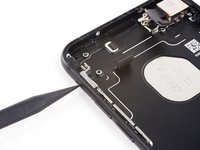
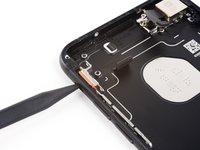
    Yorum Ekle

  66. iPhone 7 Power and Volume Control Cable Replacement: adım 66, 2 resimden 1. iPhone 7 Power and Volume Control Cable Replacement: adım 66, 2 resimden 2.
    • Gently fold the power button module from the edge of the rear case.

    FixBot'a Sor

    Yorum Ekle

  67. iPhone 7 Power and Volume Control Cable Replacement: adım 67, 3 resimden 1. iPhone 7 Power and Volume Control Cable Replacement: adım 67, 3 resimden 2. iPhone 7 Power and Volume Control Cable Replacement: adım 67, 3 resimden 3.
    • Slide the blade of a halberd spudger under the power button end of the button cable to separate it from the adhesive on the rear case.

    • Continue to separate the adhesive by moving the blade towards the top of the phone.

    FixBot'a Sor

    Yorum Ekle

  68. iPhone 7 Power and Volume Control Cable Replacement: adım 68, 3 resimden 1. iPhone 7 Power and Volume Control Cable Replacement: adım 68, 3 resimden 2. iPhone 7 Power and Volume Control Cable Replacement: adım 68, 3 resimden 3.
    • Continue to move the blade of the halberd spudger underneath the power and volume control cable.

    • Move slowly to make sure that the cable is not damaged during removal.

    FixBot'a Sor

    Yorum Ekle

  69. iPhone 7 Power and Volume Control Cable Replacement: adım 69, 3 resimden 1. iPhone 7 Power and Volume Control Cable Replacement: adım 69, 3 resimden 2. iPhone 7 Power and Volume Control Cable Replacement: adım 69, 3 resimden 3.
    • Slide the halberd spudger under the volume control portion of the button cable.

    • Gently slide the blade underneath the cable towards the bottom of the phone, separating the remaining adhesive.

    FixBot'a Sor

    Yorum Ekle

  70. iPhone 7 Power and Volume Control Cable Replacement: adım 70, 1 resimden 1.
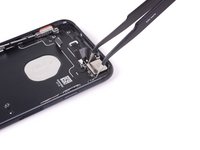
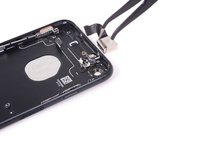
    • Remove the power and volume control cable.

    FixBot'a Sor

    Yorum Ekle

Sonuç

To reassemble your device, follow these instructions in reverse order.

İptal et: Bu kılavuzu tamamlamadım.

36 farklı kişi bu kılavuzu tamamladı.

Scott Havard

Üyelik tarihi: 06/27/16

51.272 İtibar

31 adet Kılavuz yazıldı

8Kılavuz Yorumları

Hello,

how can I disassemble and assemble the mute button from the flex cable. because most spare part cables are without mute button…

thanks

Martin - Yanıt Paylaş
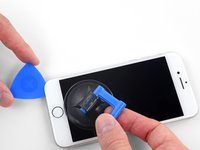
the mute button can slide out. there is space on the side that is not marked red. it looks like three clips hold it in but simply grab hold of the button nob thing with tweezers and slide or wedge it out from underneath that bar that goes around the side with the red line and then once it’s out you can slip that button into the new flex

reymito sanchez - Yanıt Paylaş

Well theres 2 hours of my life I’m not getting back, worked a treat though…

Trig0r - Yanıt Paylaş

hahaha aqint that the truth LOL

Sethi Jr - Yanıt Paylaş

After reinstalling the volume and power buttons and brackets & clips, my power button won’t turn phone off/on; my volume control seems possessed and does what it wants, lol. Help!

Martha Brewer - Yanıt Paylaş

Yorum Ekle

İstatistikleri Görüntüle:

Son 24 Saat: 8

Son 7 gün: 54

Son 30 gün: 211

Her zaman: 49,054